Joining the Malta Aquarist Society Forum
Click on the Join link situated on the Top Right side of the Page. This is found in each page.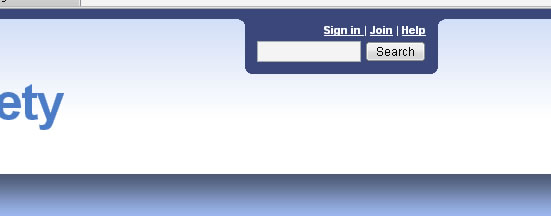
A new window will be displayed.
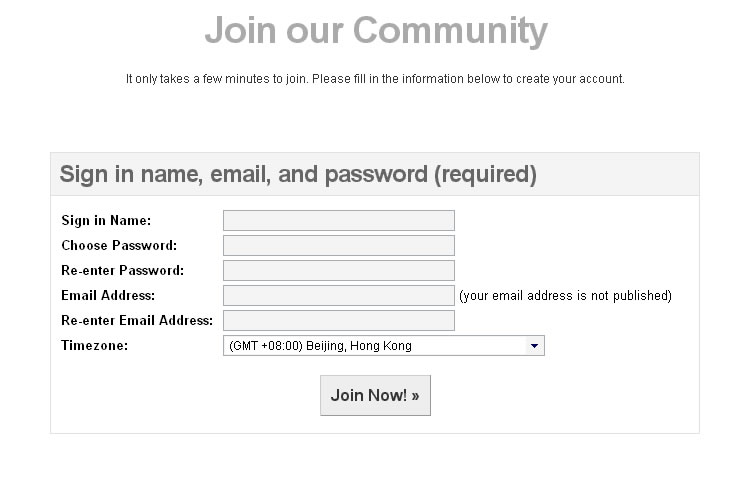
Enter your Sign in Name, Password and a Valid E-mail Address.
Example:
- Sign in Name: Testuser
- Choose Password: the password you wish
- Re-Enter Password: this is used as a confirmation step
- Email Address: test@test.com
- Re-Enter Email address: this is used as a confirmation step
Then Click Join Now!
N.B. If you are trying to click on the Join Now and nothing happens it means that you have wrote something incorrectly. You will normally see a red asterix (*) near your mistakeA window will be displayed telling you that your account is pending approval. From here the Administrator will verify your data and when your account will created you will be sent an E-mail notification. Please allow a maximum of 48hours before an account may be activated.
Sign in to the Malta Aquarist Society Forum
Click on the Sign in link situated on the Top Right side of the Page. This is found in each page.A new window will be displayed.
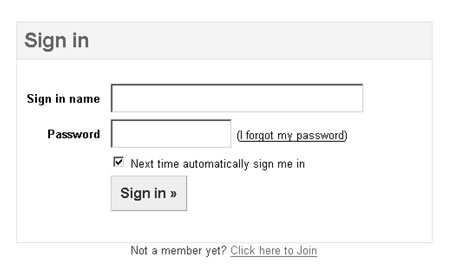
Enter your Sign in Name and Password
Example:
- Sign in Name: Testuser
- Password: your personal password
Then Click Sign in!
N.B. If you are trying to click on the Sign in button and error page or Incorrect User Credentials page is displayed it means that you have wrote something incorrectly.How do you reply to a message?
Each post or message found in a particular topic of each forum there are a set of buttons. One of these is the Reply Button.
When one clicks on the Reply button a new window will appear and a text editor (Similar to Word and Open Office) will be available for editing and formatting the text being written.
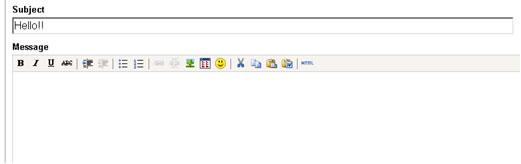
There is also a button above the Message box which is named Quote. This button will automatically take the text that is being replied to and put into a quote area such as the example below
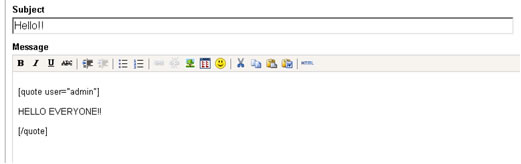
The user will reply to this message under the [/quote] tag. When ready click the button Post found at the bottom of the page.
What does the Quick Reply do?
The quick reply is used as a fast a simple method to reply to a comment, post or message that another user or yourself have already posted. A quick reply lacks attachments, animations, links or quotes as it is just a textual reply to a previous post.What are Tags?
Tags are a simple way to keep important messages, posts linked, just as we keep a website in our bookmarks or favourites folder. The only difference is that the Tags are given a name by the person writing the post and it is seen and clicked by anybody else to view the post. There is no need to create tags for each and every post but for posts that seem relevant and might be informative. Tags can be viewed according to the Forum currently in, or taken at random when on the general view page of all forum or Photo Gallery page.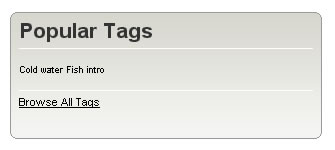
How do I include images my messages?
There are 2 ways from which you can insert an image into your post.Option A: When writing your message there is a link to insert an image. (Tree icon image)
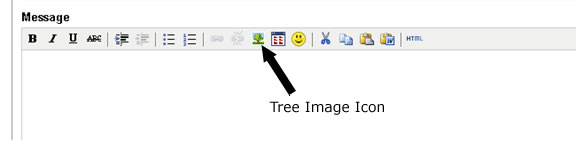
This image will be to insert an image from a website or an uploaded image from anywhere on the web.
For example: : http://maltaaquarist.com/Images/Background-Logos-Headers/MASLogo.png this will produce the MAS Logo.
By clicking the image link a new window will pop-up.
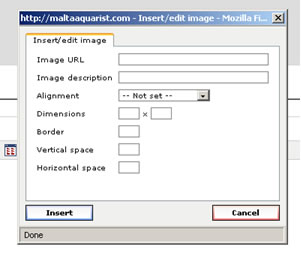
Insert the complete URL of the image that you want and the description
For example:
- Image URL: http://maltaaquarist.com/Images/Background-Logos-Headers/MASLogo.png
- Image Description: Logo of the Malta Aquarist Society
- Alignment (This is where the image will be aligned within your message): Center
- Dimensions (Size of the picture in pixels): 250 x 250
- Border (If you want to put any border around the image): 0
- Vertical space (Space between the upper and lower text): 1
- Horizontal space (space between the left and right side text): 1
Your image will be put in the message near your text.
Option B: This method will put any image that is in your computer and attach it to your message or post.
When writing a message you will have a tabular selection which is found at the top part of the reply postClick on the 'Options' tab.
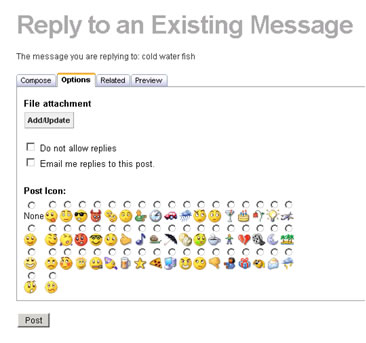
Under the text 'File Attachment' you will find a button called Add/Update. Click the latter.
A new window will pop-up indicating the file to upload.
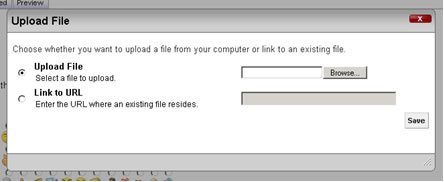
Click on the Browse button to select the appropriate file to upload.
Click Save.
The uploaded file will be attached to your post. If you have already written your message you can click the bottom button 'Post' or click back on the Compose tab and write your message.
How do I place a post?
Select the Forum in which you would like to place your post. This is done by clicking on the particular Forum. Before doing this action make sure that you are Signed in. A new page will be displayed.Find the Button name Write a New Post. This is usually situated just under the description of the Forum.
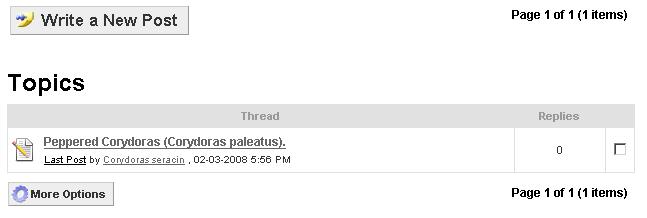
Click on the Write a New Post button
A new page will be displayed showing the following:
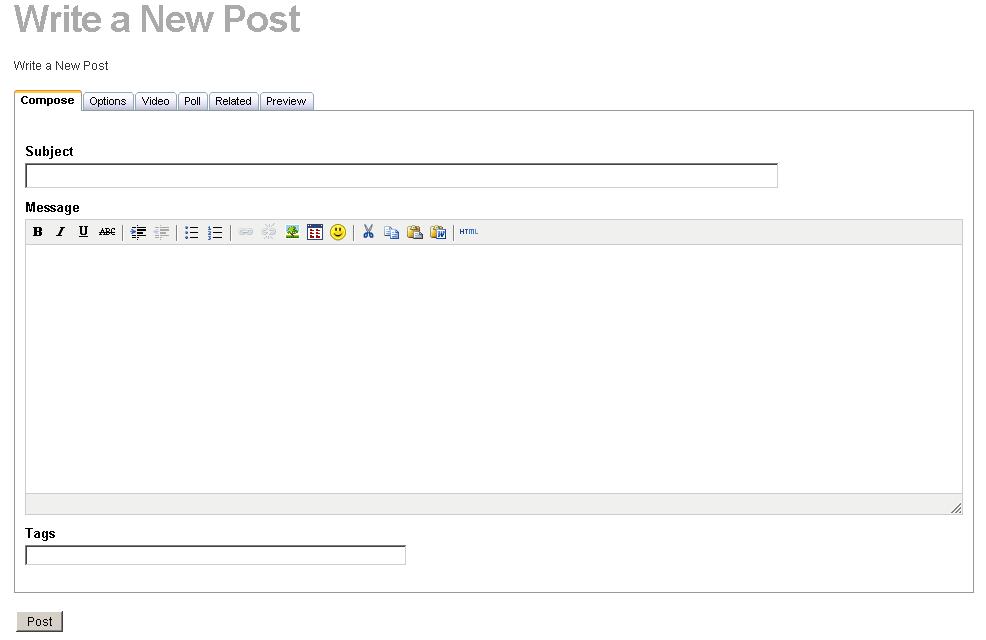
From here you may insert you message / post. It is important to enter the Subject of the post as this will be the topic of your discussion.
By clicking on the other tabs (Options.etc) you may select further options and choices that can be utilised in your post.
When ready click Post
What do the Icons near each Forum or topic mean?
Below is a list of Icons that will appear near each toopic or Forum.
 - New Posts in this Forum
 - No New Posts in this Forum
 - Popular Topic (This is a topic which had a lot of posts and which is popular)
 - Topic which has not been yet read (This is a topic which no replies have been posted and it is not been opened for some time
 - Active Topic (This is a topic which has new posts that are active or that you have not yet read or replied to)
What is an Avatar?
An avatar is an image, animation or small clip that is used as a graphical representation of oneself as a member of the Forum or Gallery. You can select your personal avatar by going in your profile and editing your avatar from there.
How do I insert / update an avatar to my profile?
Each member that has registered in the maltaaquarist.com forum or Gallery has a unique profile. It is important that this profile is kept updated at all times and that a valid e-mail address is given.
One may also add or update his own avatar.
This is done by following these steps:
Sign In to the Forum or Gallery.
On the Top right of the page you should have the following:

Click on the Edit profile link.
This will take you to a new page
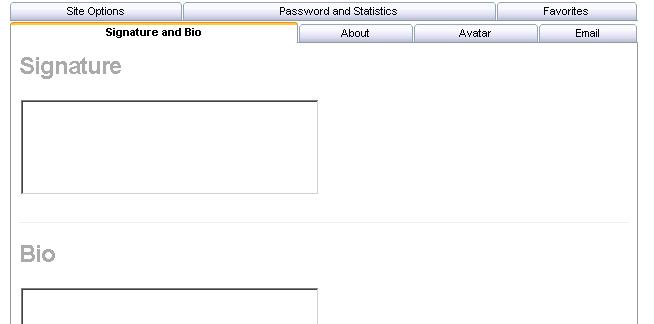
Click on the tab named 'Avatar'
This should open a new page dedicated only for the options related to the Avatar
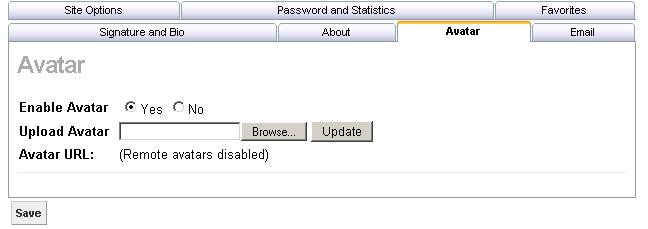
Click on the Browse button near the 'Upload Avatar' line
The Browse will open a small window from which you may select your Avatar from your local computer.
When ready click the Save Button situated just below the Avatar block.